
Canvas drawImage is a good tool to cut, to scale or to spin the picture. So how can it achieve this amazing the functions?
DrawImage Grammar:
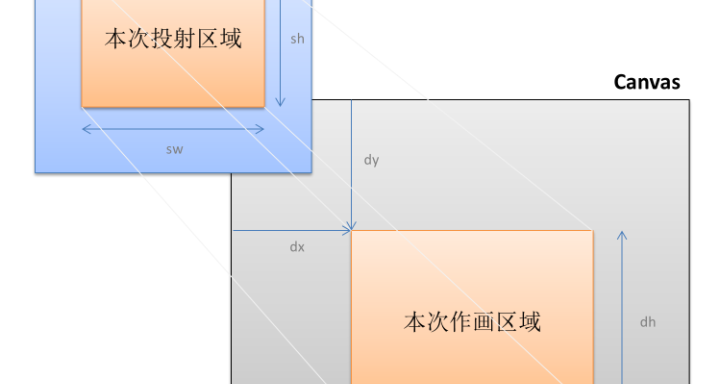
context.drawImage(image, sx, sy, sWidth, sHeight, dx, dy, dWidth, dHeight);Parameter analysis:
image: An image file or Canvas object drawn onto the Canvas.
sx: The X-coordinate position where the crop starts when the image is drawn.
sy: The Y-coordinate position where cropping begins when the image is drawn.
sWidth: The width of the crop when the image is drawn.
sHeight: The height at which the image is cropped when drawn.
dx: The X-coordinate position where the image was drawn at the beginning of the drawing.
dy: The Y-coordinate position at which the image was drawn at the beginning of the drawing.
dWidth: The width of the image when drawn. (Optional)
dHeight: The height at which the image is drawn. (Optional)
2. Loading image files
Before you can draw an image on a Canvas using the drawImage method, you must first load the image file. Here's what it looks like:
var img = new Image();
img.src = "path.xxx";
img.onload = function(){
  //canvas drawImage
}
In Path/File Name.xxx, the path indicates the path where the image file is located, the file name refers to the name of the image file (including the suffix), and xxx indicates the type of the image file (such as jpg and png).
Fourth, a simple example
The following example shows how to draw an image file onto a Canvas. In the example, we load a drawn image file (panda.jpg) and then draw the image file to Canvas.
<canvas id="myCanvas"></canvas>

<script>
  var canvas=document.getElementById("myCanvas");
  var ctx=canvas.getContext("2d");
  var img=new Image();
  img.onload=function(){
    ctx.drawImage(img, 0, 0);
  };
  img.src="panda.jpg";
</script>
Run the above code to draw an image named panda.jpg on Canvas.
3. Draw some pictures
Sometimes, we don't need to draw the whole picture, but only a part of it. Here's what it looks like:
<canvas id="myCanvas"></canvas>

<script>
  var canvas=document.getElementById("myCanvas");
  var ctx=canvas.getContext("2d");
  var img=new Image();
  img.onload=function(){
    ctx.drawImage(img, 0, 0, 50, 50, 0, 0, 100, 100);
  };
  img.src="panda.jpg";
</script>
In the above code, we draw an image in the upper left corner of the panda.jpg image in the range of 50x50 pixels onto Canvas, and then enlarge that part of the image to the range of 100x100 pixels. As a result, we only see the top left part of the panda .jpg image on Canvas, and this part of the image is doubled in.
4. Zoom the picture
We can scale the image by modifying the width and height of the image drawn on the Canvas. Here's what it looks like:
<canvas id="myCanvas"></canvas>

<script>
  var canvas=document.getElementById("myCanvas");
  var ctx=canvas.getContext("2d");
  var img=new Image();
  img.onload=function(){
    ctx.drawImage(img, 0, 0, img.width/2, img.height/2);
  };
  img.src="panda.jpg";
</script>
In the above code, we reduced both the width and height of the panda.jpg image by half, using the method of dividing the original width and height by 2.
5. Rotate the picture
We can rotate the image drawn on the Canvas via the rotate method. Here's what it looks like:
<canvas id="myCanvas"></canvas>

<script>
  var canvas=document.getElementById("myCanvas");
  var ctx=canvas.getContext("2d");
  var img=new Image();
  img.onload=function(){
    ctx.rotate(20*Math.PI/180);
    ctx.drawImage(img, 0, 0, 100, 100);
  };
  img.src="panda.jpg";
</script>
In the above code, we rotated the drawn image 20 degrees before drawing the image onto the Canvas.
6. Realize image filling
We can use the drawImage method to implement the image fill effect in Canvas. Here's what it looks like:
<canvas id="myCanvas" width="300" height="150"></canvas>

<script>
  var canvas=document.getElementById("myCanvas");
  var ctx=canvas.getContext("2d");
  var img=new Image();
  img.onload=function(){
    var pat=ctx.createPattern(img,"repeat");
    ctx.fillStyle=pat;
    ctx.fillRect(0,0,300,150);
  };
  img.src="panda.jpg";
</script>
In the above code, we use the drawImage method to create an image fill effect. Specifically, we first create a 2D context of the Canvas, then use the createPattern method to create a repeating pattern consisting of panda.jpg images, and then fill this pattern onto the Canvas.