Extension is very necessary nowadays web browser. It can make the browser personality and easier to use. If you don't want to use extensions from Chrome Store. Why not DIY a one?
1. Create a project folder
First, you'll need to create a folder on your local disk to store the plugin's code and resource files.
2. Create a manifest.json file (Key document!!)
This file is required to declare the basic information and functionality of the plugin. In manifest.json, you need to specify the plugin's name, version number, icon, permissions, pages, scripts, and other information. Here's an example:
{
  "name": "MyExtensionName",
  "version": "1.0",

  "description": "My awesome extension",
  "icons": {
    "16": "icon16.png",
    "48": "icon48.png",
    "128": "icon128.png"
  },
  "permissions": [
    "tabs",
    "http://*/*",
    "https://*/*"
  ],
  "background": {
    "scripts": ["background.js"],
    "persistent": false
  },
  "content_scripts": [
    {
      "matches": ["http://*/*", "https://*/*"],
      "js": ["content.js"],
      "run_at": "document_end"
    }
  ],
  "page_action": {
    "default_icon": "icon.png",
    "default_popup": "popup.html",
    "default_title": "Click here!"
  }
}
Be attention! If you write "manifest_version": 3, here should be written as:
    "background":{
        "service_worker":"background.js"
    },
Note that each plugin must have a unique name, and the version number of the plugin must be incremental.
3. Write the plugin code
3.1 popup.html
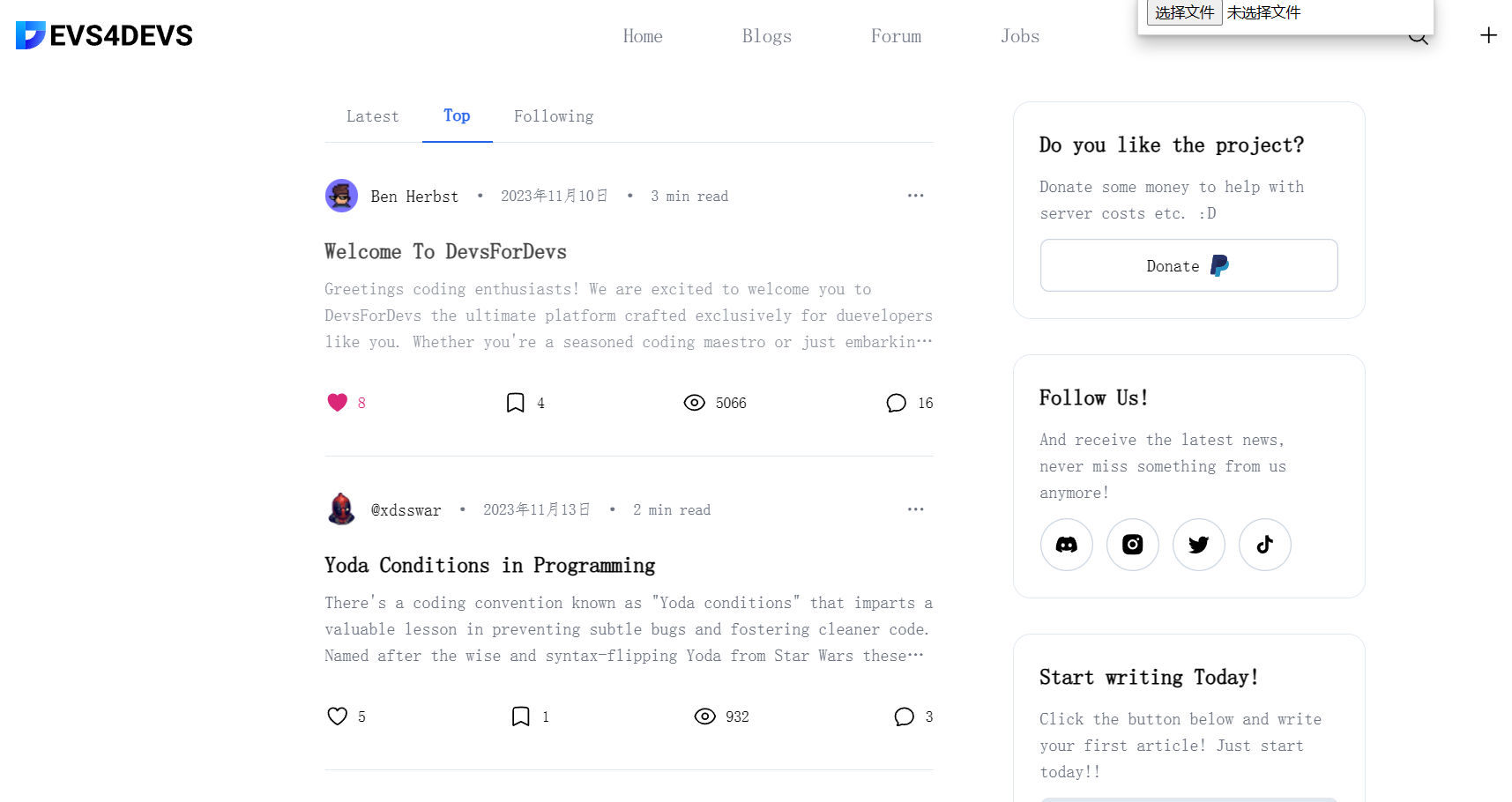
This is the UI design for extension. This is the popup look like as the picture shows:

3.2 background.js
This is the script that could keep your extension keeping running. Here is a simple example.
chrome.action.onClicked.addListener((tab) => {
    chrome.scripting.executeScript({
      target: { tabId: tab.id },
      files: ["content.js"]
    });
  });
3.3 content-script.js
This is the script to achieve your extension's function. Here is an example:
document.body.style.backgroundColor = "greeen";You could also write in backgound.js if the code is very simple to achieve:
function injectedFunction(color) {
  document.body.style.backgroundColor = color;
}

chrome.action.onClicked.addListener((tab) => {
  chrome.scripting.executeScript({
    target : {tabId : tab.id},
    func : injectedFunction,
    args : [ "orange" ],
  });
});
4.installtion
Go to the Extensions page by entering
chrome://extensionsin a new tab. (By designchrome://URLs are not linkable.)Alternatively, click the Extensions menu puzzle button and select Manage Extensions at the bottom of the menu.
Or, click the Chrome menu, hover over More Tools, then select Extensions.
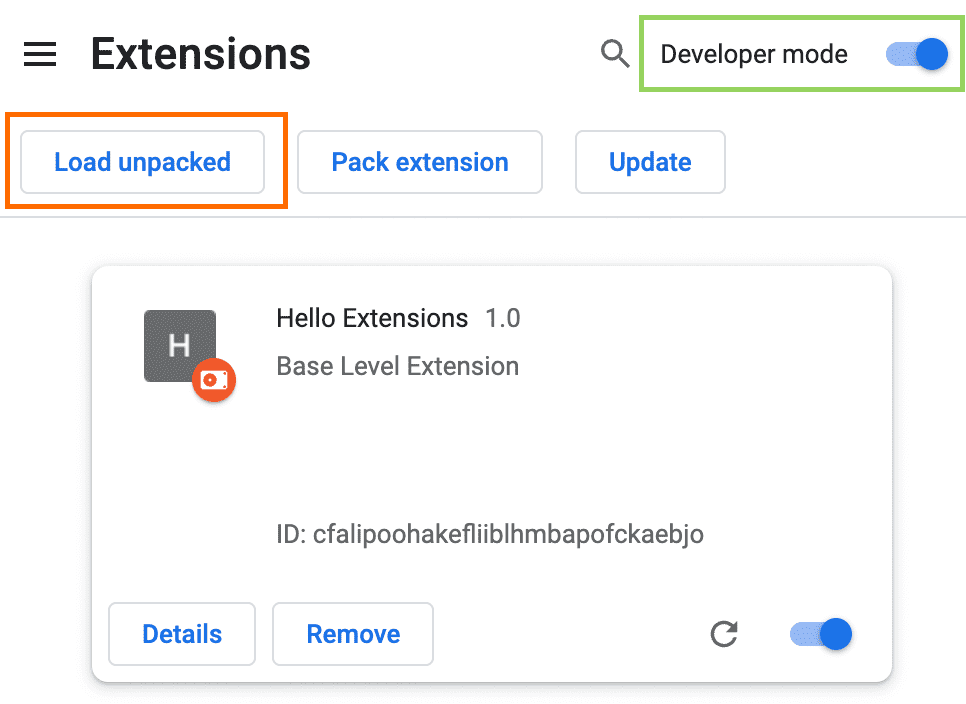
Enable Developer Mode by clicking the toggle switch next to Developer mode.
Click the Load unpacked button and select the extension directory.
You could also package into .zip and rename as .crx.
Now, enjoy it!