
Disk C refers to one of the main partitions of the computer hard disk, generally used for storage or system installation. For a single operating system installed on a local hard disk, it is the default local system boot hard disk. Most of the files in the Disk C are mainly composed of system folders such as Documents and Settings, Windows, and Program Files. The Program Files folder is generally the default location for installing software, but it is also the location of viruses, so the Disk C must be tightly protected. The Disk C is extremely important for the single operating system of the local hard disk, so try not to put the Disk C when storing data.
But sometimes the Disk C space provided by the computer manufacturer when pre-installing disk space is too little. Even if you save all the files on the other disks, you will still feel that the Disk C is not enough. In order to increase the space of the Disk C and ensure the stable and safe operation of the system and other important files, it is necessary to reallocate the disk space and allocate a small portion of the spare disk space to the Disk C.
1. Disk management that comes with Windows
This is a simple tool that can allow you to manage your disk room. To use keybroad windows+x, you can open Disk management:

In Disk Management, you will find how your computer's storage space is allocated, including which special-purpose recovery partitions are not displayed.
Right-click on the disk with excess space, select Compress Volume, and allocate a portion of the excess disk space. You can determine how much space to allocate to the disk based on the event. This results in a new, unpartitioned, blank disk. Select compression to complete.
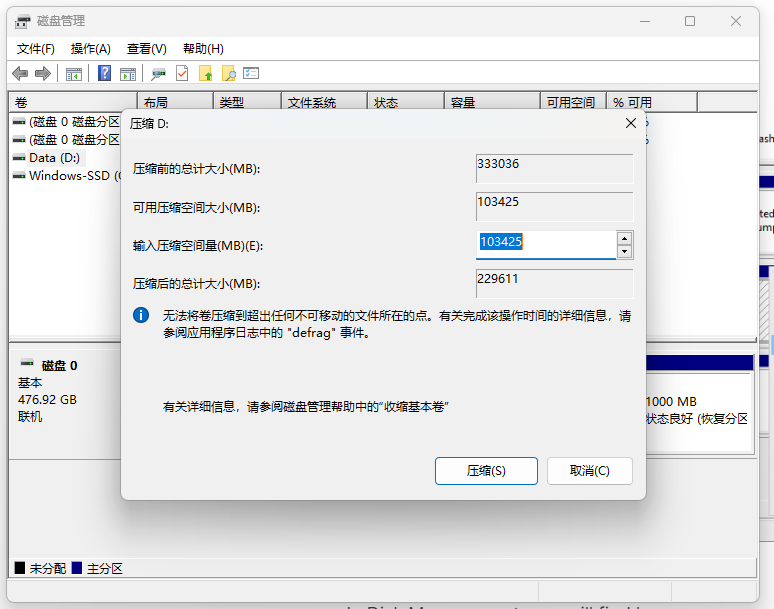
At this time, you can rename the separated blank disk to become a new storage disk. You can also create a new storage disk on the Disk C. Right-click the mouse and select Extend Volume to merge the separated disk space into the disk C to expand the Disk C space.
For this step, you just need to follow the system guidance.
But this method has a limitation. You can only merge the unpartitioned blank disk located on the right side of the Disk C into the Disk C, but the unpartitioned blank disk located on the right side of the storage disk cannot be merged.
2. Use third-party disk management tools
Here we take Aomei Partition Assistant, a free and secure disk management tool from China, as an example.
1. Download and install this tool in your computer.
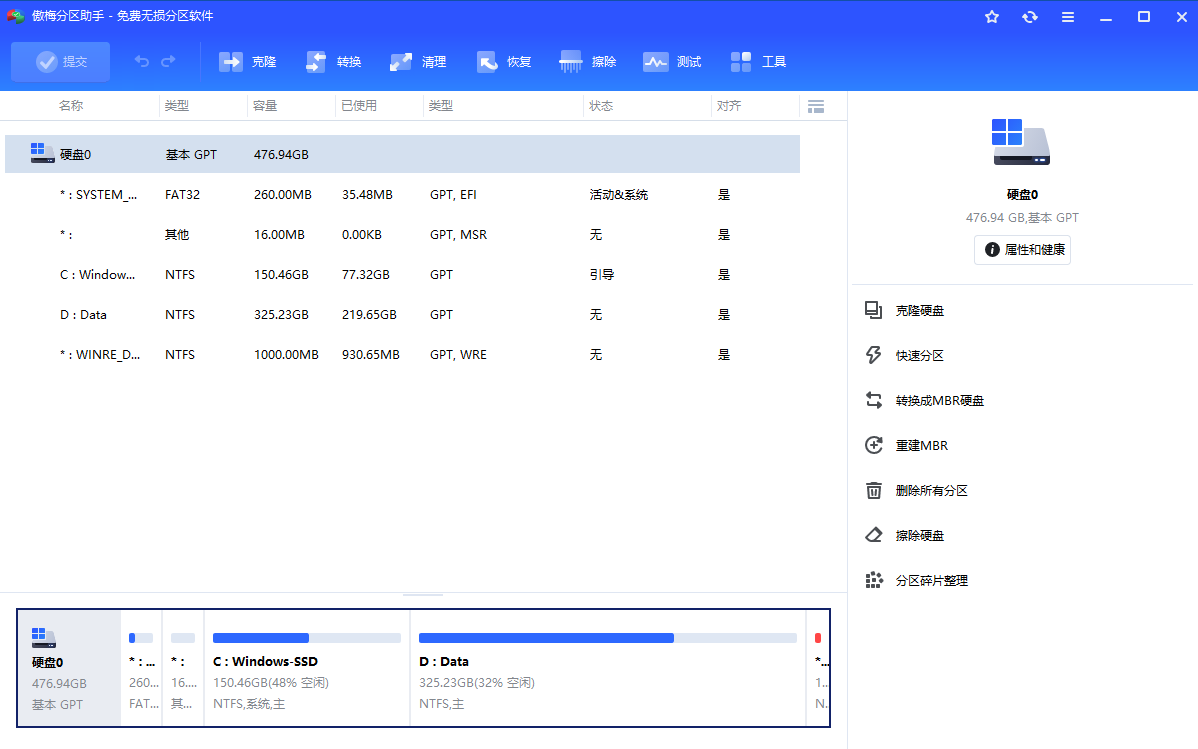
Right-click disk C and select Resize/Move Partition (调整/移动分区)
Check "Divide from (*) partition to (C)" and "Use new mode to adjust the mobile partition in the fastest and safest way", and select the disk with excess space on the right.
Then drag the button between the Disk C and the spare disk with the mouse to reduce the Disk C space to the left and expand the C drive space to the right.
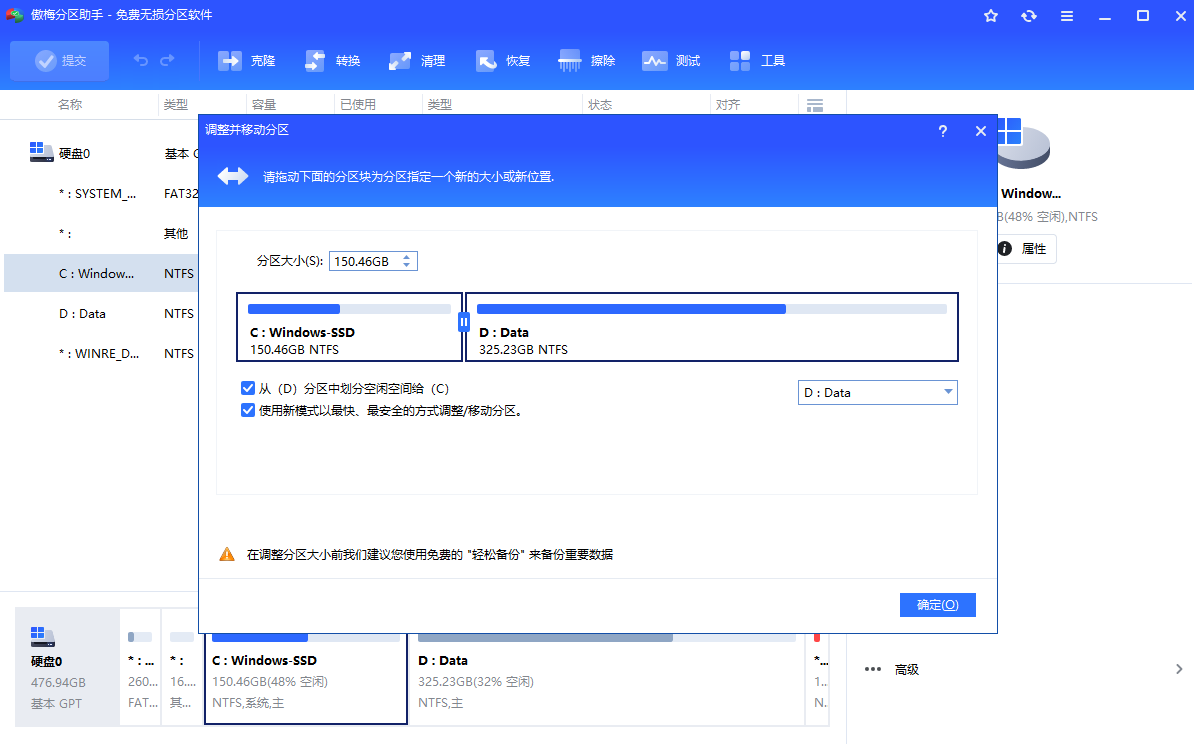
Then click OK. The software will display the size of each disk space after the disk reallocation plan is completed. If no further adjustments are needed, click Submit.
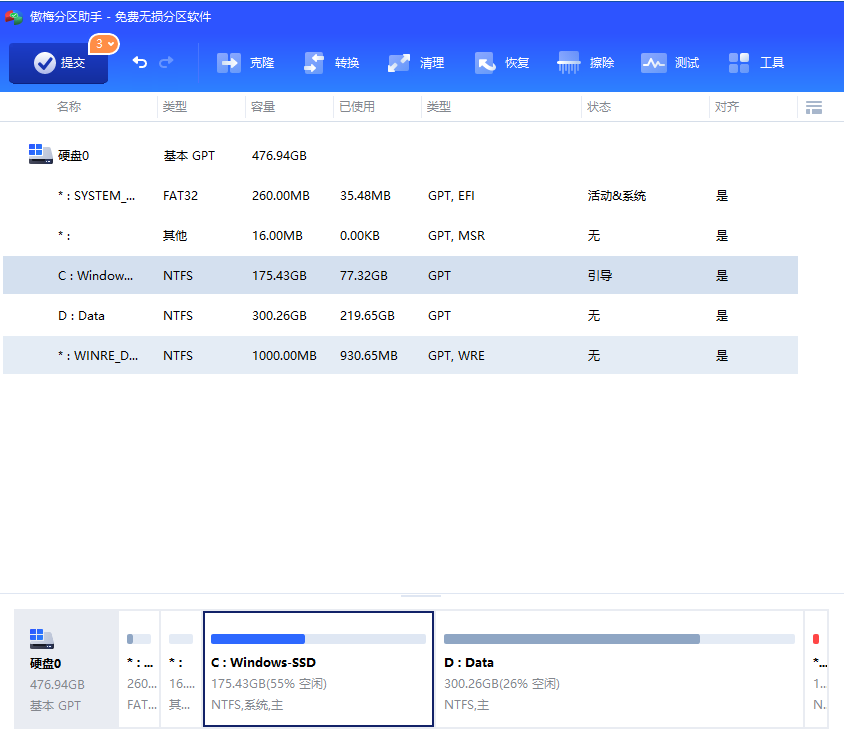
5.The software will confirm to you again the amount of disk space you need to adjust. If there is no problem, click OK. If there are options later, "Restart into Windows PE mode" and "Restart into PreOS mode", just choose the former by default.
Next, wait for Windows to restart and automatically repartition.
In addition to this software, there are other third-party software. For specific operation procedures, please consult the official website.
If the overall computer space is insufficient, after allocating more space to the Disk C, you can consider purchasing a solid-state drive to expand the computer's capacity and store general user datas.